Production
PF Pick Receipt tab
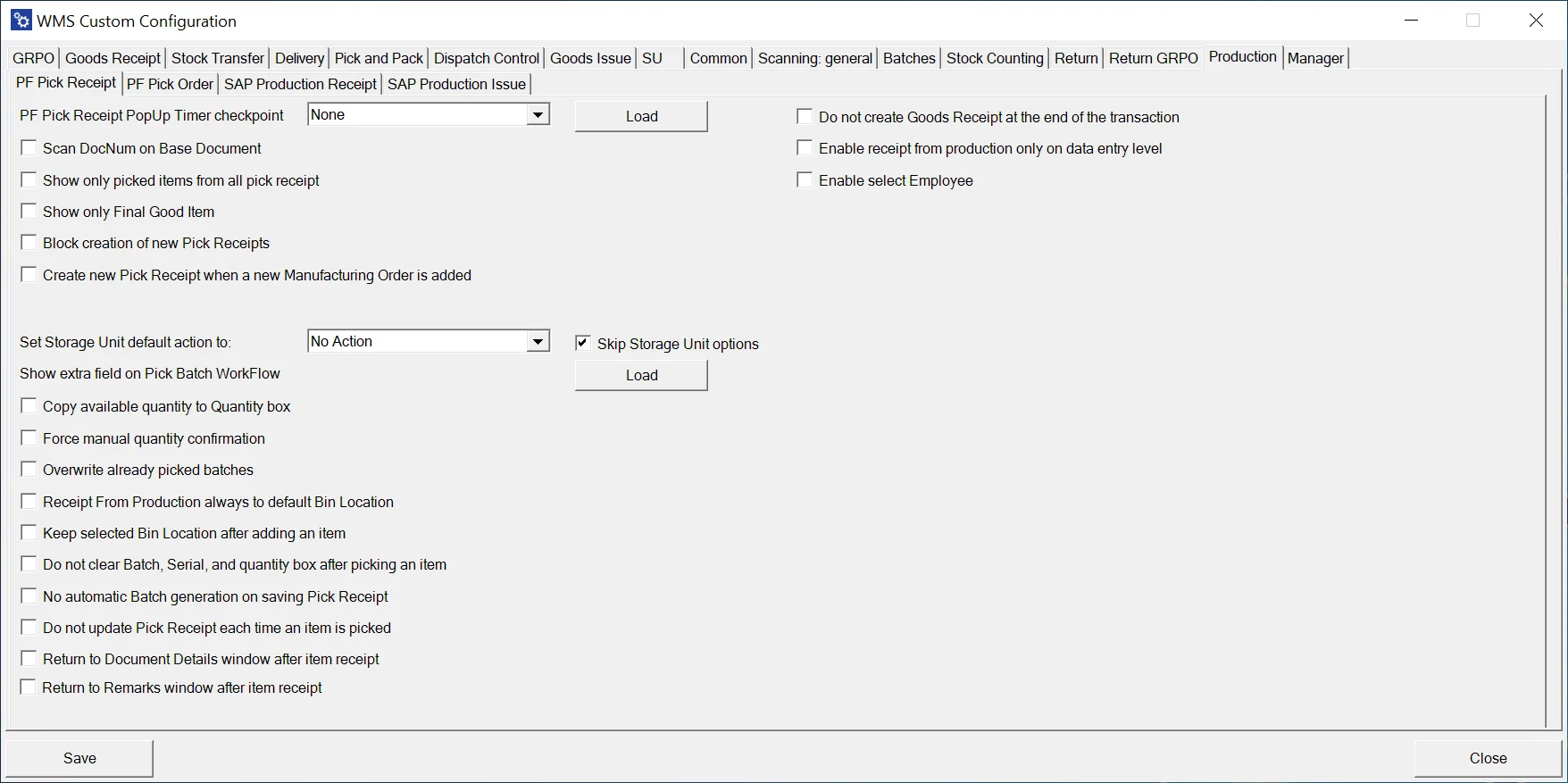
PF Pick Receipt PopUp Timer checkpoint – None, Select the base document, Select Item on the list, Pick quantity to the first line, Save Document
Scan DocNum on Base Document – On selecting the Pick Receipt or Manufacturing Order window, scanning will work by DocNum instead of DocEntry.
Show only picked items from all pick receipts – narrow the list of displayed Items to only those with a picked quantity greater than 0.
Show only Final Good Item – narrow the list of displayed items to only the Final Good Item.
Block creation of new Pick Receipts – enabling this option disables the following option: "Create new Pick Receipt when a new Manufacturing Order is added."
Create a new Pick Receipt when a new Manufacturing Order is added – creates a new Pick Receipt Instead of adding its content to the currently opened one.
Set Storage Unit default action and Skip Storage Unit options – after selecting a line, Storage Unit options are displayed, allowing a user to create storage units or continue packing the last created one. Selecting a default action, "New SU" or "New SU Each Pick," will automatically skip displaying Storage Unit options.
Show extra field on Pick Batch Workflow – displays an extra field on selecting batch if and only if the SQL query was provided after pressing the "Load" button:
Copy available quantity to Quantity box – copies remaining quantity to the quantity box.
Force manual quantity confirmation – blocks the "Fast scan" on the document. For each performed scan, the user has to manually confirm the quantity, i.e., press the save button before adding the item with a scan.
Overwrite already picked batches – when a Batch is already picked for a line, for example, in SAP B1, then picking the same batch in WMS will overwrite its quantity rather than adding to what was already picked.
Receipt from production always to default Bin Location – when receipting to a warehouse with bin locations, the default bin will be automatically chosen. Selecting other bin locations will be blocked.
Keep selected Bin Location after adding an item – after picking an Item, the Bin Location field will not be cleared (keeping the same Bin Location)
Do not clear Batch, Serial, and quantity after picking an item – changed from the old version where those fields were not cleared after picking.
No automatic batch generation on saving Pick Receipt – by default, when picking a batch item is not required to enter a batch number – it will be generated automatically. This option disables this feature.
Do not update the Pick Receipt each time an Item is picked – by default when an item is picked, the Pick Receipt document is updated, and information about it is displayed. Enabling this checkbox will disable this feature. To update the Pick Receipt, a user will have to save the transaction from the "Remarks" window, which will, by default, create a Goods Receipt document.
Return to the Document Details window after item receipt. When an item is picked/added, instead of staying on the "Quantity" window, the application will redirect back to the main document window.
PF Pick Order tab
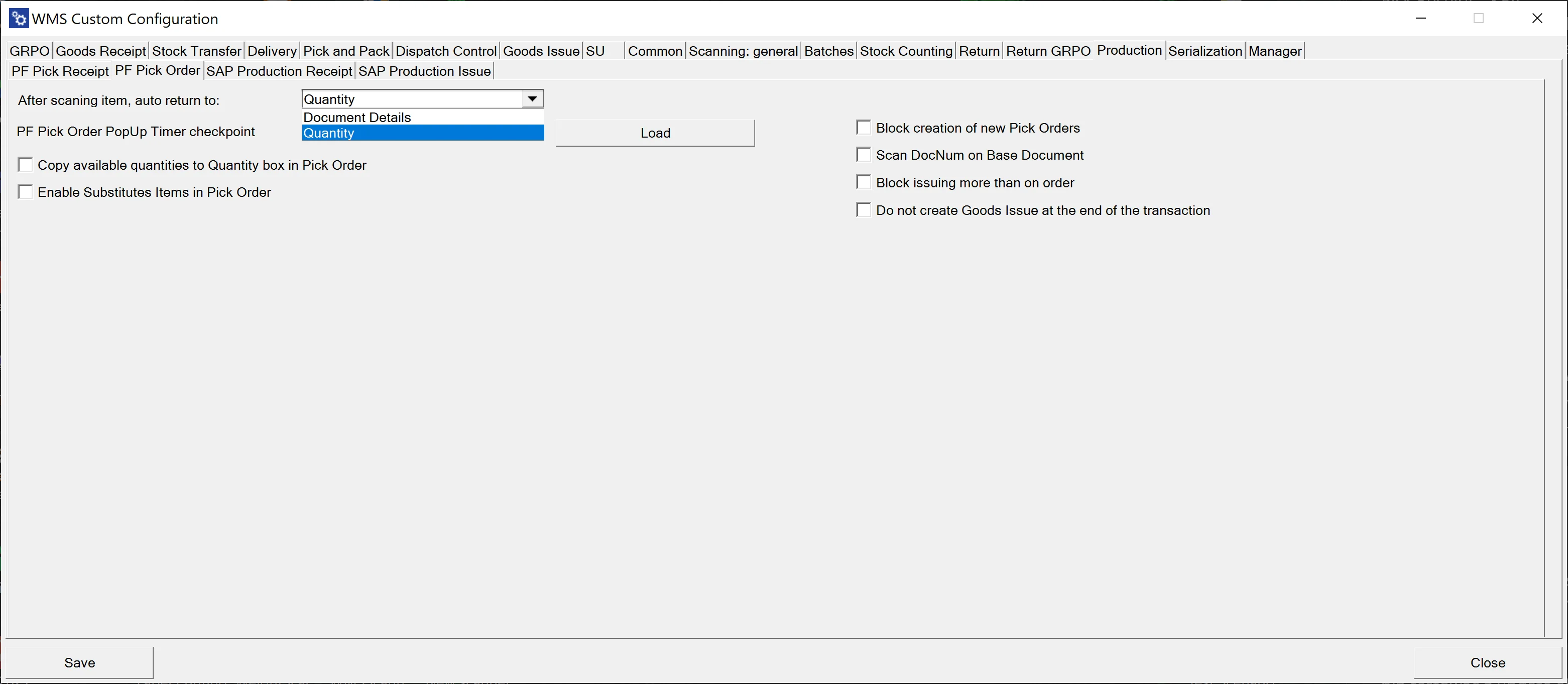
After scanning the item, auto return to – choose to go either to the Document Details or stay on the Quantity form after scanning an Item barcode
PF Pick Order PopUp Timer checkpoint – None, Select the base document, Select Item on the list, Pick quantity to the first line, Save Document.
Copy available quantities to the Quantity box in Pick Order – copies remaining quantity to the quantity box.
Enable Substitutes Items in Pick Order – the option allows use in Pick Order. The option can be deactivated when not needed.
Scan DocNum on Base Document – on selecting a Pick Order or Manufacturing Order window; scanning will work by DocNum instead of DocEntry.
Do not create a Goods Issue at the end of the transaction – when this option is checked, a Goods Issue document is not created at the end of the transaction. The user then can confirm and create it from ProcessForce → Pick Order level.
SAP Production Receipt tab
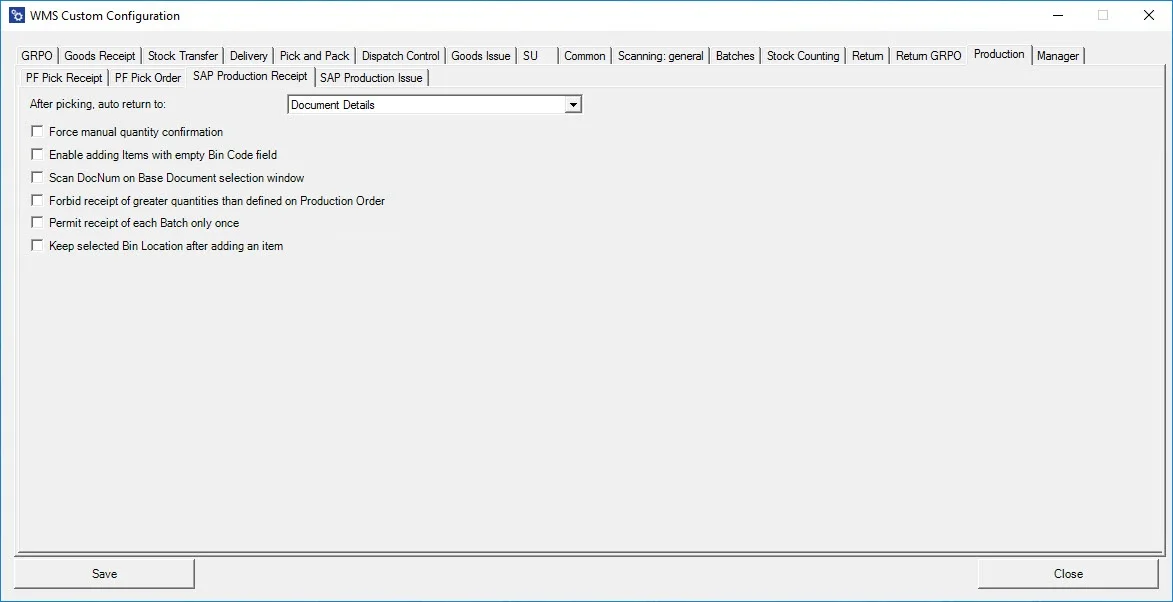
8After picking, auto return to: – defines to which form the application goes back after confirmation of receipt on a document line. The available options: Document Details and Item Details
Force manual quantity confirmation – checking this checkbox force manual quantity confirmation – scanned quantity will be added to a quantity field but must be confirmed by pressing the–screen button. If the checkbox is not checked, the scanned quantity is automatically approved.
Enable adding Items with an empty Bin Code field – this option allows you to add items from bins without indicating a specific location.
Scan DocNum on the Base Document selection window – checking this option allows you to scan a document by Docnum, not by DocEntry, if a base document was chosen.
Forbid receipt of greater quantities than defined on the Production Order. When the option is checked, receiving a quantity larger than it is on the related Manufacturing Order is impossible.
Permit receipt of each Batch only once – this option allows you to receive a specific batch number only once.
Keep the selected Bin Location after adding an Item – self-explanatory.
SAP Production Issue tab
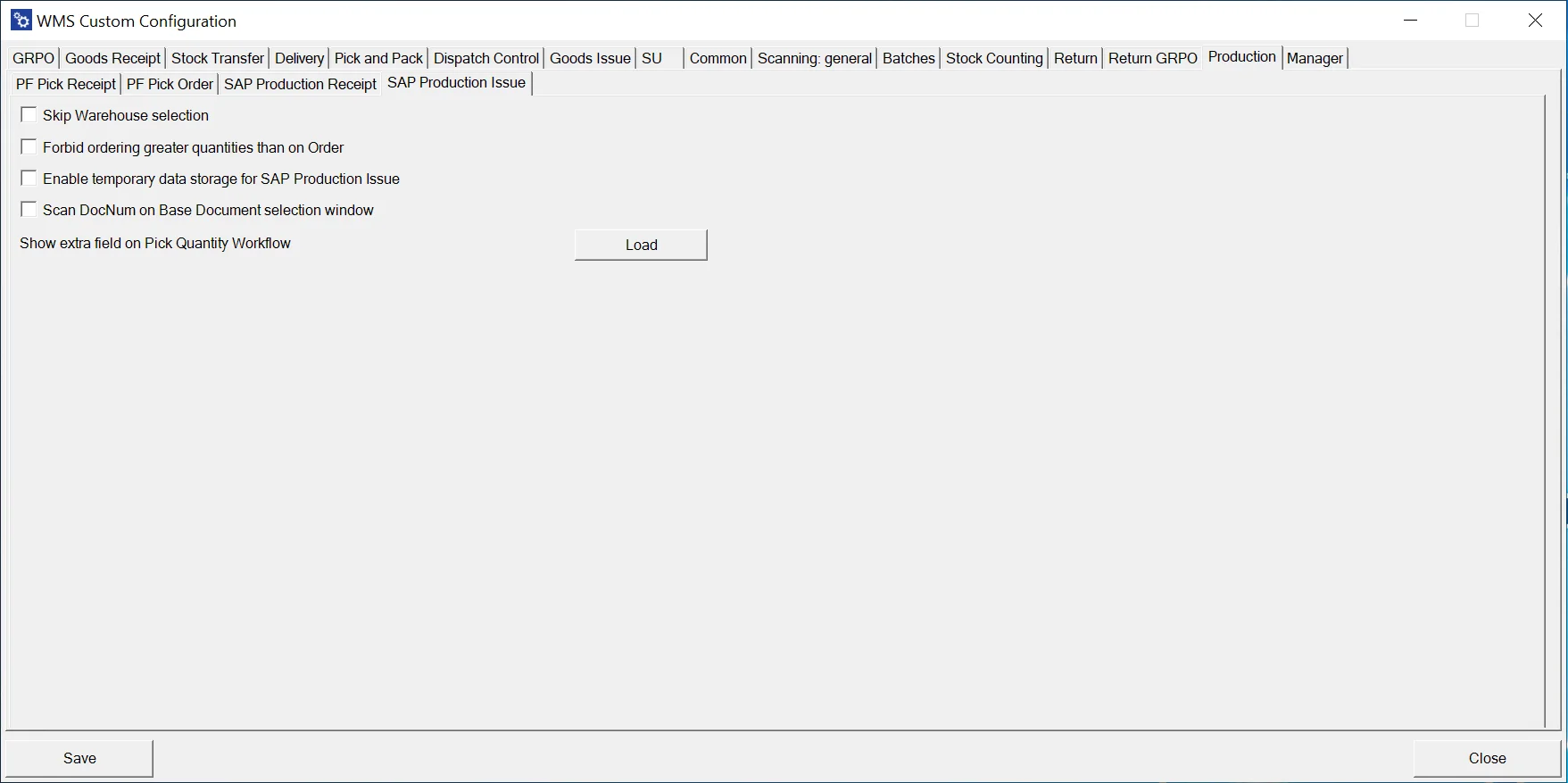
Skip Warehouse selection – the warehouse selection screen is not displayed.
Forbid ordering greater quantities than on Order – when the option is checked, it is impossible to set an amount larger than it is on the related Manufacturing Order.
Enable temporary data store for SAP Production Issue – enables to go back to create a document that was not saved yet.
Scan DocNum on the Base Document selection window – checking this option allows you to scan a document by Docnum, not by DocEntry, if a base document was chosen.